![Asseti_logo_horiz_white_1000px_rgb.png]](https://help.asseti.co/hs-fs/hubfs/Asseti_logo_horiz_white_1000px_rgb.png?height=40&name=Asseti_logo_horiz_white_1000px_rgb.png)
Why use the mobile app?
The Asseti mobile app puts your sites in your pocket. Walk a site with the map showing where you are, check the condition of the roof or pavement in front of you, and report issues with photos right where you find them.
There are two ways to use it, with the same features:
- The iPhone app: "Asseti" on the App Store.
- The mobile web app: the same app, running in your phone's browser at app.asseti.co. Use it on Android phones and any other phone.
Note: There's no Android app. The mobile web app works on Android phones, and you can add it to your home screen so it opens like an app.
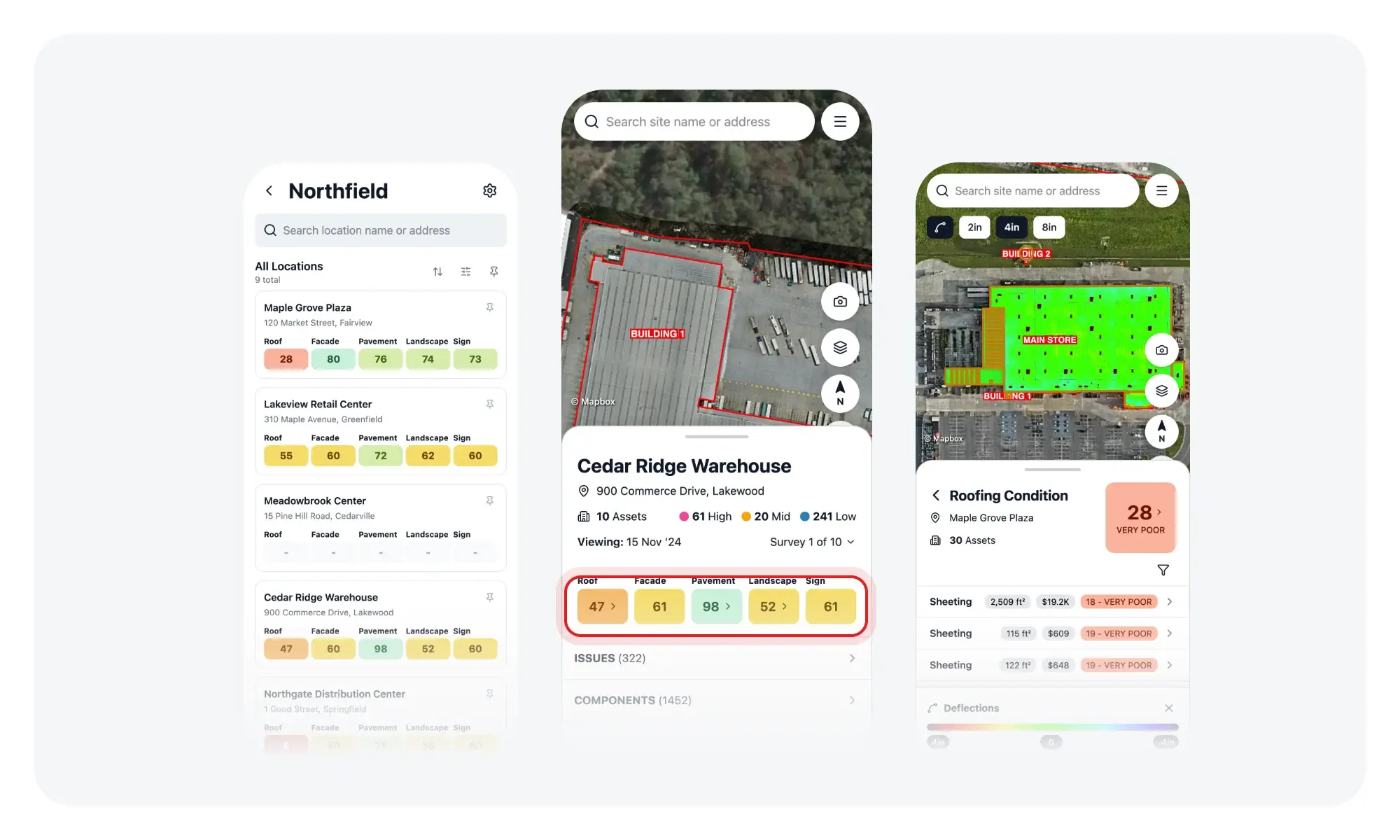
What you'll need
- Your Asseti account (the same email you use on the web app)
- An iPhone, or another phone with an up-to-date browser
- An internet connection
Get the app on an iPhone
App Store
- Open the App Store on your iPhone.
- Search for Asseti, or open this link on your iPhone: https://apps.apple.com/app/id6781167697
- Tap Get to download the app.
- Open the app and sign in.
The first time you sign in, a short welcome shows you around. Tap Get Started to go to the map.
Safari
- Open Safari on your iPhone and go to app.asseti.co.
- Tap the Asseti banner at the top of the page to open the app's App Store page.
- Tap Get to download the app.
If you already have the app, the banner opens it instead.
Other browsers
- Open app.asseti.co in your browser, such as Chrome.
- In the "Asseti works best in the app" banner at the bottom of the screen, tap Open the app.
The app opens if you have it. If you don't, the App Store opens so you can download it. To hide the banner, tap the X icon.
Use the mobile web app on other phones
On Android or any other phone, go to app.asseti.co in your browser and sign in. Phones are taken to the mobile web app automatically, so there's nothing to install.
Add the mobile web app to your home screen
Add the mobile web app to your home screen to open it with one tap, full screen, without the browser's address bar.
Android
- Open app.asseti.co in Chrome.
- Open Chrome's menu.
- Choose the option to add the page to your home screen or install it, and confirm.
iPhone
If you'd rather not install the iPhone app, you can add the mobile web app instead.
- Open app.asseti.co in Safari.
- Tap the share icon.
- Tap Add to Home Screen, then tap Add.
Frequently asked questions
Can I use the full desktop site on my phone?
No. Phones are always taken to the mobile web app. Use a computer for the tables, agents, exports and the 3D view.
Does the app work offline?
No. You need an internet connection.
Do I need a separate account for the mobile app?
No. Sign in with the same account you use on the web app. Check out Sign in to the mobile app.
Why does my tablet show the full web app?
Only touch screens narrower than 768 pixels open the mobile web app. Larger tablets open the full web app.
Need more help?
Use Live chat in Help & Support on the web app, or contact your Asseti team.
Related articles
Sign in to the mobile app
Learn how to sign in to the Asseti mobile app with SSO, a password, or an emailed link, so you can get to your sites from the field.
What you can do in the mobile app
Learn what the Asseti mobile app is and what it can do on iPhone and in your phone's browser. Find sites, check their condition and handle issues right where the work is.
Report an issue from the field
Learn how to report an issue with photos via the mobile app in Asseti, so your team can see it on the web, pinned where you found it.